In the P&L planner, every forecast line starts out seeded from your trailing-6-month actuals, and you edit the numbers by hand. A driver rule turns a line into a computed one instead — its numbers come from something that already moves elsewhere in your plan, so you never retype them. Change the source and the driven line follows automatically.
Two kinds of rule
- From Workforce — the line is your Workforce forecast’s payroll: pick which comp components feed it (Base comp, Commission, Bonus), optionally narrow it to certain Department or Subsidiary members (e.g. only Engineering feeds “R&D Salaries”), and add a Multiplier for burden like payroll taxes (e.g. 112%). Add a hire or change comp in Workforce and this line moves with it.
- % of a line — the line is a percentage of another: an account, a whole statement section (like “20% of Income” for commissions), or a management group subtotal.
Setting a rule
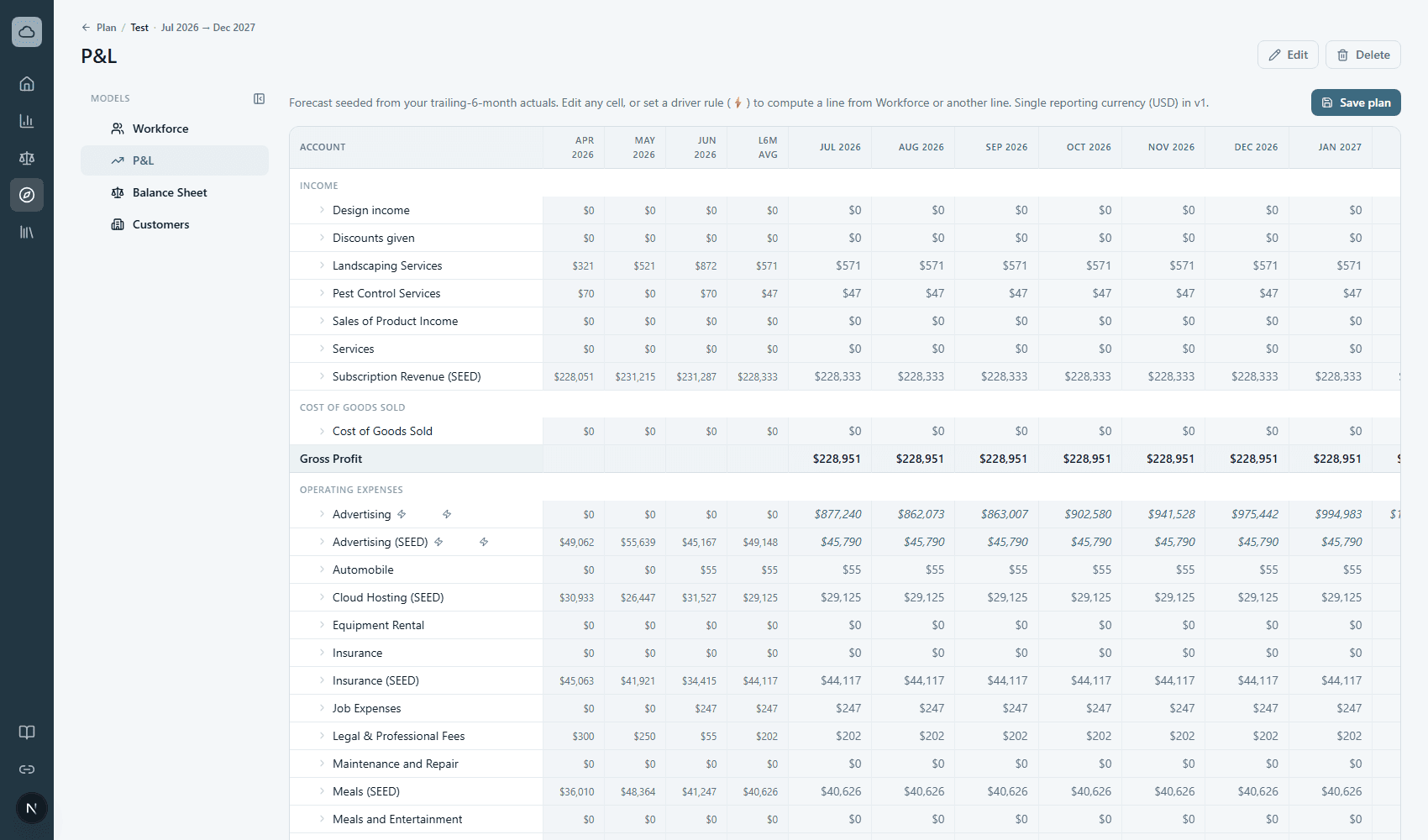
- Hover an account row and click the lightning-bolt (⚡) icon next to its name.
- Choose From Workforce or % of a line, fill in the details, and click Set rule.
- The line’s forecast cells turn computed — shown in italics with a tint and a ⚡ badge on the row. Hover the badge to read the rule in words.
- Click Save plan to store the computed numbers, same as any other edit.
Things to know
- A driven line is locked — you can’t type over individual months. Open the rule again and click Remove rule to make it editable; it keeps its last computed values so nothing jumps.
- Rules can reference each other (bonuses off salaries, commissions off revenue), but a circular reference is blocked when you set it — Potenza names the loop so you can fix it.
- A From Workforce line reads $0 until you’ve generated a Workforce forecast for the model. It recomputes each time the P&L opens.
Rules are saved per planning model, so the same account can be driven differently in different scenarios.