Source systems are messy: one file says Sales, another says GTM, a third says Sales & Mktg. A dimension is Potenza’s clean version of a category — Department, Subsidiary, Account, Vendor — with a curated list of members that every source maps into. One dimension can be fed by multiple datasets, which is the point: “Sales” means the same thing in your headcount and your expenses.
How mapping works
- Link a dimension to a source column on the source table’s Dimension mapping tab (e.g. Department → the roster’s
departmentcolumn, or the accounting data’sclass_name). Linking auto-seeds the member list from the values already in your data. - Map raw values to members in the drill-in grid: each raw value gets a dropdown of members (add a new member right inside the dropdown). Potenza pre-suggests safe matches — like a
Parent:Childvalue mapping to its parent. Click Save to persist.
Mapping is applied when data is read, not when it’s imported — the raw value is always preserved next to the standardized one, and remapping updates all history instantly.
Blank vs. Unassigned
- Blank — the source row has no value at all.
- Unassigned — the row has a value Potenza doesn’t recognize yet (typically a new value that appeared since your last mapping pass). It’s a data-quality flag: visit the mapping grid and assign it. Every dimension also has a standing “Unassigned” member you can deliberately park values in.
Managing a dimension
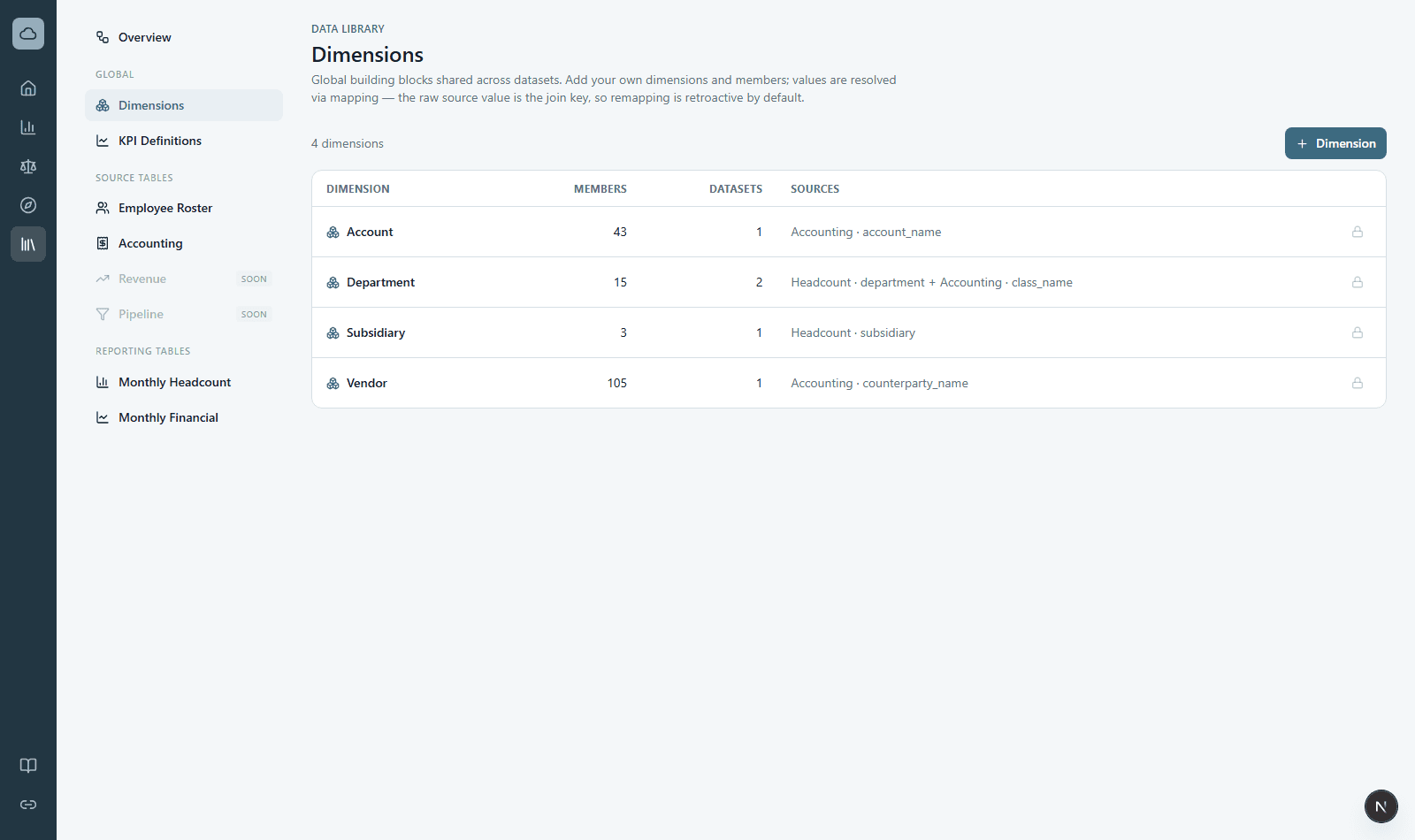
The Dimensions section lists every dimension with its members and which datasets feed it. Open one to see members with row counts, Merge one member into another (retroactively remaps everything), delete empty members, or Adopt current values to baseline the member list from the data as it stands.
Members flow into your models
A dimension’s members are the same list your planning models use. When you break a P&L line out by a dimension, you can plan a row for any member — including one that has no spend history yet (it shows a no history tag and seeds to zero). New vendors, departments, and the like are always added here in Dimensions, never typed into a model, so they appear in every model automatically. The breakout picker has a Don’t see it? Add it in Data → link that brings you straight here.
Rule of thumb for where to click: anything that involves a specific source’s columns (linking, mapping raw values) lives on that source table’s Dimension mapping tab; anything about the dimension itself (members, merging) lives in Dimensions.